Pop Thoughts / Product guide
How to Set Up a Team in PopPay
Invite teammates or accountants, choose exactly which businesses they can access, and give accountants a focused Workbench for VAT and finance review.
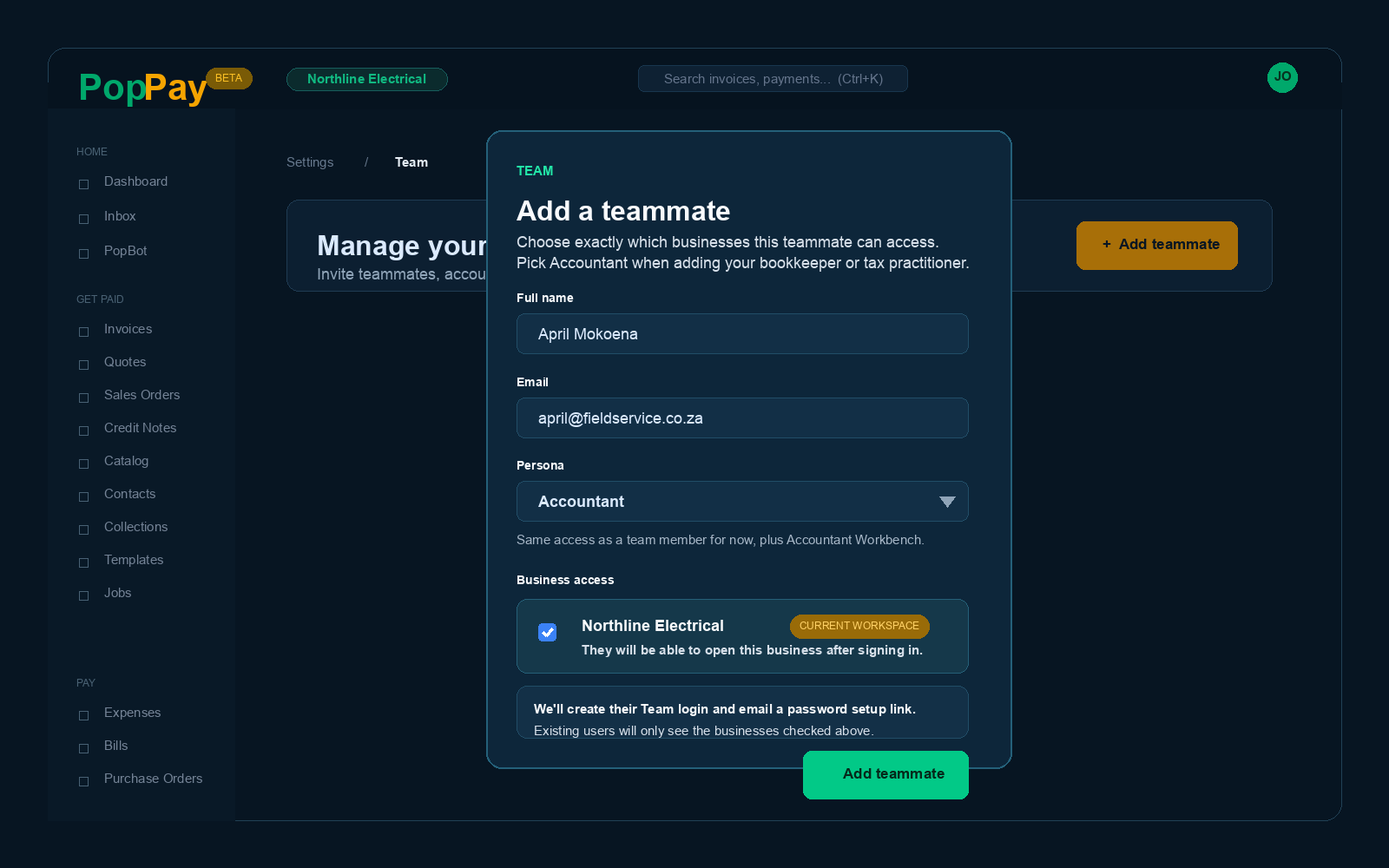
PopPay Team lets the account owner give teammates and accountants access to specific businesses without handing over owner powers like billing, account deletion, integrations, or inviting more people. Everyone uses the normal PopPay login page, but each person signs in with their own email and password.
The most important rule: Team access is explicit and business-by-business. If you own multiple businesses in PopPay, a teammate or accountant only sees the ones you selected for them.
Before you start
Only the top-level account owner can invite teammates, choose the Accountant persona, change business access, reset passwords, or remove someone. Team members and accountants can work inside assigned businesses, but owner-only areas stay locked.
Step 1: Open Team and click Add teammate
In PopPay, go to Team and choose Add teammate. Enter their full name and email address, then choose their persona.
Step 2: Choose the exact businesses they can access
Check the businesses this person should work inside. If you own more than one business, this becomes a multi-select. Anything you leave unchecked stays off-limits by default.
- One teammate or accountant can be granted access to one business or several.
- You can change those business grants later from Team.
- Accountants only see selected businesses in their Accountant Workbench.
- Billing, integrations, Team management, and account deletion still remain owner-only.
Adding your accountant
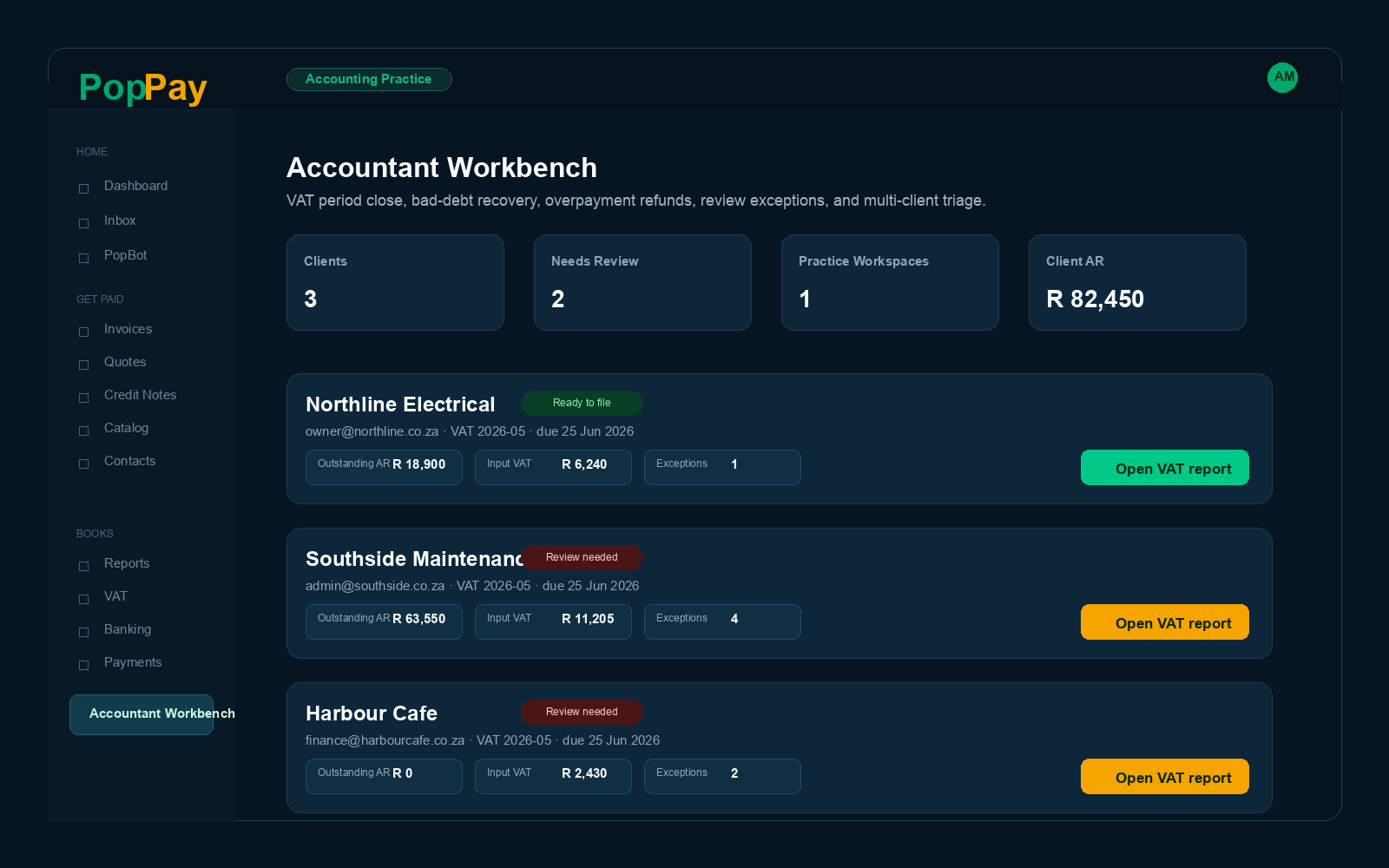
Choose Accountant when you invite the person who helps you with VAT, tax, bookkeeping, management accounts, or month-end review. This keeps the invite simple for the business owner while giving the accountant a dedicated place to work.
- For now, accountants have the same read/write access as a normal team member for the businesses you select.
- Once they sign in, Accountant Workbench appears for that login.
- If they support multiple PopPay businesses, each owner can grant access to their own business and the accountant can use the same login across all of them.
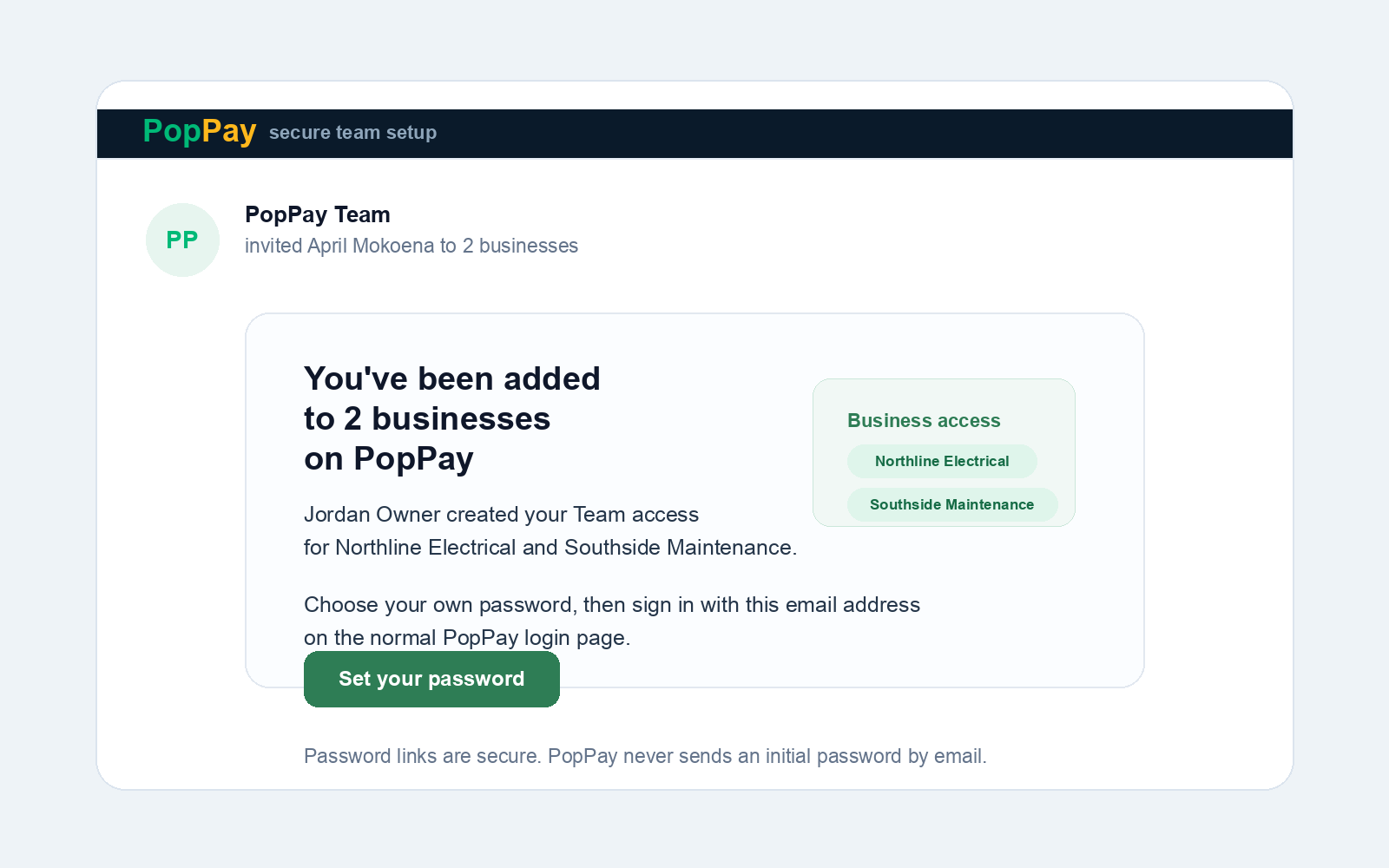
Step 3: The teammate receives an email to get started
If they are new to PopPay, the invite email tells them to set their password from the email link. If they already have a PopPay account, they can sign in with their existing password and will only see the businesses you granted.
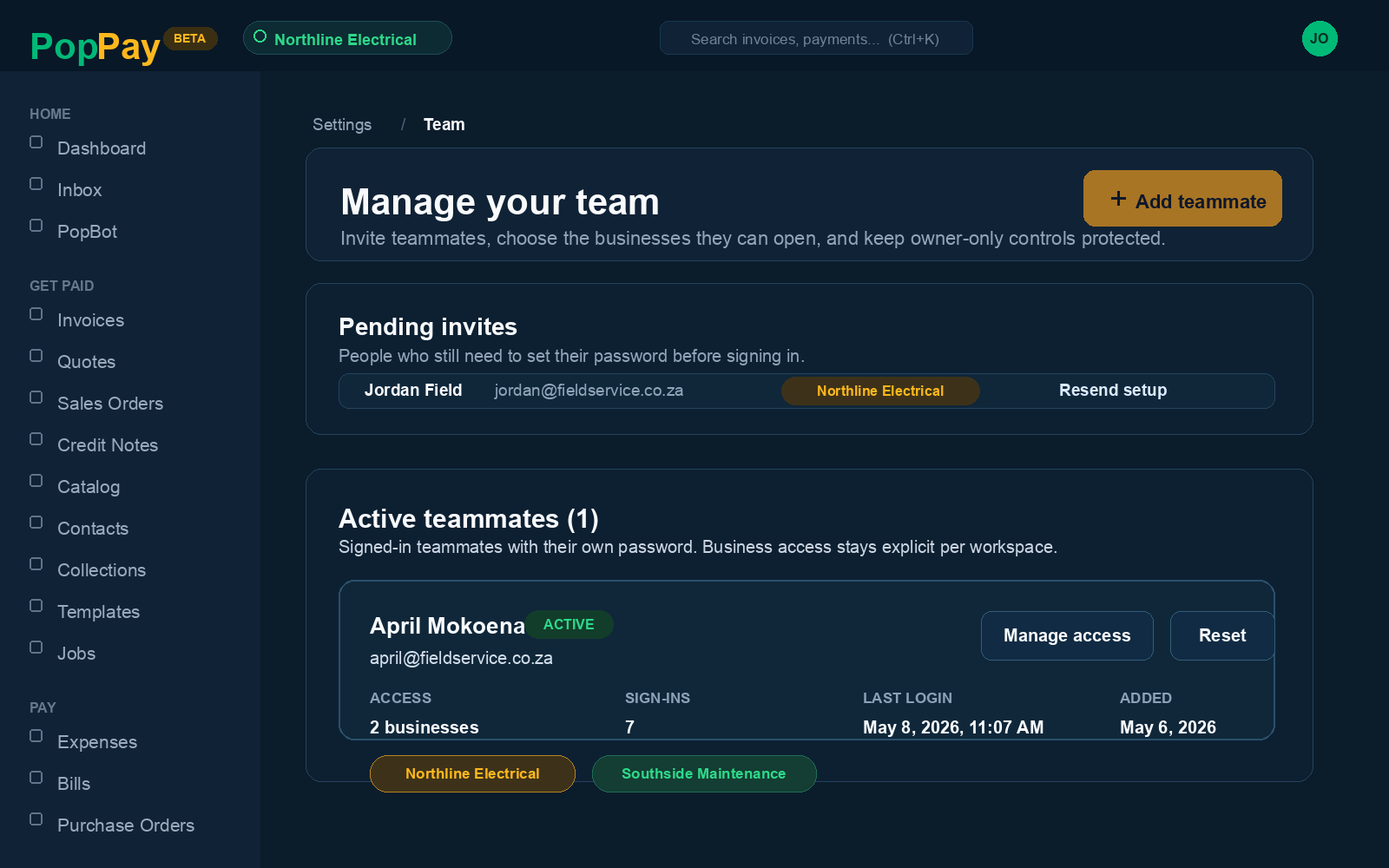
Step 4: Manage active teammates and accountants from the Team page
Once someone has signed in, you can see their access, persona, total sign-ins, last login, and the date they were added. You can also reset their password or remove them.
What teammates and accountants can and cannot do
- Can do: sign in with their own email and password, work inside assigned businesses, and reset their own password from the normal login flow.
- Accountants can also do: open Accountant Workbench for the businesses where they have been invited as an accountant.
- Cannot do: invite more teammates, delete the account, or access businesses you did not explicitly grant.
- Owners can still: change business access later, force a password reset, or remove a teammate or accountant completely.
Forward this to your team
“We’ve added Team in PopPay. You’ll receive an email from PopPay with access to the business we selected for you. Use that link to set your password if you’re new, or sign in with your existing PopPay password if you already have an account. Use the normal PopPay login page either way.”
For accountants: “We’ve added you as an Accountant in PopPay. You’ll have access to the client business we selected, and once you sign in you’ll see Accountant Workbench for VAT, bad-debt recovery, overpayment refunds, and review items.”
FAQ
Can one teammate access multiple businesses? Yes. Owners can grant access to one or more businesses explicitly.
How do I add my accountant? Open Team, click Add teammate, choose the Accountant persona, and select the businesses they should support.
What access does an accountant get? For now, accountants have the same read/write access as a team member for assigned businesses, plus Accountant Workbench.
Can one accountant support multiple businesses? Yes. Each owner grants access business-by-business, and the accountant can use the same login across those client businesses.
Can I change access later? Yes. Owners can grant or revoke business access from Team at any time.
What if someone forgets their password? They can use the normal forgot-password flow, or the owner can trigger a reset from Team.